



Primeros Pasos con Sensor IMU de 6 DOF (MPU-6050) en Arduino
Componentes y Suministros
| Componente | Descripción | Cantidad |
|---|---|---|
| Arduino UNO | 1 | |
| Unidad de Medición Inercial (IMU) 6 DOF (MPU-6050) | 1 |
Sobre este Proyecto
Hoy estudiaremos el mejor sensor IMU (Unidad de Medición Inercial) disponible y descubriremos cómo interconectarlo con un Arduino. En nuestro próximo tutorial intentaremos visualizar la detección de movimiento en 3D.
El módulo de sensor IMU que usaremos se basa en el sensor MPU-6050.
Los dispositivos MPU-6050 combinan un giroscopio de 3 ejes y un acelerómetro de 3 ejes en el mismo chip de silicio, junto con un Procesador de Movimiento Digital (DMP™) integrado, que procesa algoritmos complejos de MotionFusion de 6 ejes.
Estos dispositivos de seguimiento de movimiento están diseñados para los requisitos de bajo consumo, bajo costo y alto rendimiento de smartphones, tabletas y sensores wearables.

Material Necesario
HARDWARE:
- 1) Arduino UNO
- 2) Sensor MPU-6050
- 3) Cables de conexión

SOFTWARE: Arduino IDE
Protocolo de Comunicación: Este sensor IMU se comunica con el Arduino usando el protocolo I2C Bus.
Puedes trabajar con acelerómetros y giroscopios por separado, pero no son tan precisos como este módulo combinado.

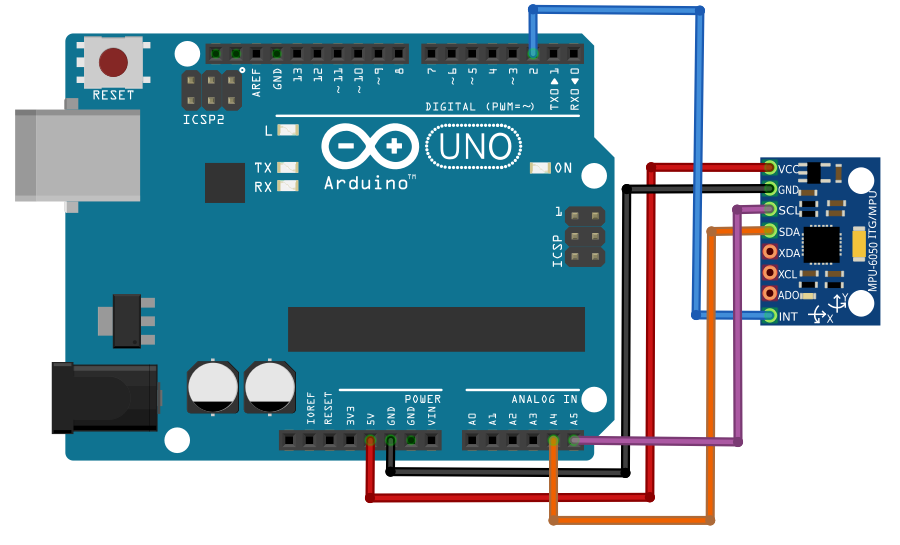
Diagrama de Conexión y Perfil de Pines
Consulta cualquiera de estas 2 figuras para la conexión:


Si tienes problemas con las figuras anteriores, no entres en pánico... Revisa el Perfil de Conexión de Pines:
- Conectar 5V [IMU MPU-6050] a VCC [ARDUINO]
- Conectar SDA [IMU MPU-6050] a Analog IN (A4) [ARDUINO]
- Conectar SCL [IMU MPU-6050] a Analog IN (A5) [ARDUINO]
- Conectar GND [IMU MPU-6050] a GND [ARDUINO]
- Conectar INTPIN [IMU MPU-6050] al Pin 2 (PWM Digital) [ARDUINO]


Nota: Si tu módulo MPU-6050 tiene un pin 5V, conéctalo al pin 5V de Arduino. De lo contrario, conéctalo al pin 3.3V para evitar problemas de sobrevoltaje.
Programando el Arduino
Ahora que tenemos el hardware listo, es hora de programar el Arduino.
- Primero, para probar el MPU-6050, haz clic en este enlace y descarga la librería de Arduino para MPU-6050. Hay una carpeta zip llamada "MPU6050.zip". Descárgala y extrae su contenido. Copia la carpeta de librería "MPU6050" y pégala dentro de la carpeta "libraries" de Arduino.
- Luego, descarga otra librería llamada "I2Cdev.zip" (si no está instalada previamente) y pégala dentro de la carpeta libraries de Arduino de la misma manera.
- Ahora, en la carpeta "libraries" de Arduino, tendrás dos nuevas entidades.

Abre el Arduino IDE y verifica si estas nuevas librerías son visibles.

Antes de incluir estas librerías en tu sketch, necesitas obtener el código para MPU6050. Referencia Fig (10): Archivo > Ejemplos > MPU6050 > Ejemplos > MPU6050_DMP6. Haz clic en este archivo "MPU6050_DMP6".

Luego, incluye las librerías "I2Cdev" y "MPU6050" en este sketch.

Después de seguir todos los pasos, COMPILA el sketch.

El paso final: verifica que el puerto COM correcto esté seleccionado (esquina inferior derecha). Si no es correcto, cámbialo. No abras el Monitor Serial todavía. Solo después de subir el sketch, ve a los siguientes pasos.

¿Confundido con esta nueva ventana? Bueno, esa es tu pantalla de salida. Técnicamente la llamamos Monitor Serial. Ahí es donde leemos los valores de diferentes sensores.
PASO: Herramientas > Monitor Serial, o Tecla de acceso rápido (Ctrl + Shift + M)

Si tienes problemas subiendo el sketch, incluso seleccionando el puerto correcto, consulta los enlaces para Windows, Mac o Linux.

Después de subir el código, abre el monitor serial y cambia el "baud-rate" a 115200. Si seleccionas otra velocidad verás caracteres basura. NOTA: Procesadores de 8MHz o más lentos, como Teensy @ 3.3V o Arduino Pro Mini a 3.3V, no pueden manejar esta velocidad de forma fiable. Debes usar 38400 o menor en estos casos.
Si no ves el mensaje "Initializing I2C devices..." en tu pantalla, presiona el botón RESET. Debería funcionar ahora.
RINCÓN DEL CONOCIMIENTO: ¿Qué es DMP?
Verás una línea que dice "Send any character to begin DMP programming and demo:". ¿Qué es DMP?
Respuesta: DMP significa Procesamiento de Movimiento Digital (Digital Motion Processing). El MPU-6050 de InvenSense tiene un procesador de movimiento integrado. Procesa los valores del acelerómetro y giroscopio para darnos valores 3D precisos: Yaw, Pitch y Roll.

RINCÓN DEL CONOCIMIENTO: ¿Qué significa I2C?
Vimos que la comunicación entre el sensor y Arduino se basa en el protocolo I2C Bus. También incluimos una librería I2C en este proyecto. ¿Sabes qué significa I2C?
Respuesta: El bus I2C físicamente consiste en 2 cables activos y una conexión de tierra. Los cables activos, llamados SDA y SCL, son bidireccionales. SDA es la línea de Datos Serial, y SCL es la línea de Reloj Serial. Cada dispositivo conectado al bus tiene su propia dirección única, sin importar si es un MCU, driver LCD, memoria o ASIC. Cada uno de estos chips puede actuar como receptor y/o transmisor, dependiendo de la funcionalidad. Obviamente, un driver LCD es solo receptor, mientras que una memoria o chip I/O puede ser ambos. El bus I2C es un bus multi-maestro. Esto significa que más de un IC capaz de iniciar una transferencia de datos puede conectarse a él. El protocolo I2C establece que el IC que inicia una transferencia de datos en el bus se considera el Bus Master. Consecuentemente, en ese momento, todos los demás ICs son Bus Slaves. Como los bus masters son generalmente microcontroladores, aquí el bus master es Arduino Uno. Del mismo modo, el sensor MPU es el Bus Slave.
Visualiza el movimiento en 3D en mi próximo tutorial.

Código
Código Arduino para sensor MPU (Arduino)
// I2Cdev and MPU6050 must be installed as libraries, or else the .cpp/.h files
// for both classes must be in the include path of your project
#include "I2Cdev.h"
#include "MPU6050_6Axis_MotionApps20.h"
//#include "MPU6050.h" // not necessary if using MotionApps include file
// Arduino Wire library is required if I2Cdev I2CDEV_ARDUINO_WIRE implementation
// is used in I2Cdev.h
#if I2CDEV_IMPLEMENTATION == I2CDEV_ARDUINO_WIRE
    #include "Wire.h"
#endif

// class default I2C address is 0x68
// specific I2C addresses may be passed as a parameter here
// AD0 low = 0x68 (default for SparkFun breakout and InvenSense evaluation board)
// AD0 high = 0x69
MPU6050 mpu;
//MPU6050 mpu(0x69); // <-- use for AD0 high

/* =========================================================================
NOTE: In addition to connection 3.3v, GND, SDA, and SCL, this sketch depends
on the MPU-6050's INT pin being connected to the Arduino's external interrupt #0 pin.
On the Arduino Uno and Mega 2560, this is digital I/O pin 2.
* ========================================================================= */

/* =========================================================================
NOTE: Arduino v1.0.1 with the Leonardo board generates a compile error
when using Serial.write(buf, len). The Teapot output uses this method.
The solution requires a modification to the Arduino USBAPI.h file, which is
fortunately simple, but annoying. This will be fixed in the next IDE release.
For more info, see these links:
https://arduino.cc/forum/index.php/topic,109987.0.html
https://code.google.com/p/arduino/issues/detail?id=958
* ========================================================================= */

// Uncomment "OUTPUT_READABLE_QUATERNION" if you want to see the actual
// quaternion components in a [w, x, y, z] format
//#define OUTPUT_READABLE_QUATERNION
// Uncomment "OUTPUT_READABLE_EULER" if you want to see Euler angles
// (in degrees) calculated from the quaternions coming from the FIFO.
//#define OUTPUT_READABLE_EULER
// Uncomment "OUTPUT_READABLE_YAWPITCHROLL" if you want to see the yaw/
// pitch/roll angles (in degrees) calculated from the quaternions coming
// from the FIFO. Note this also requires gravity vector calculations.
#define OUTPUT_READABLE_YAWPITCHROLL
// Uncomment "OUTPUT_READABLE_REALACCEL" if you want to see acceleration
// components with gravity removed.
//#define OUTPUT_READABLE_REALACCEL
// Uncomment "OUTPUT_READABLE_WORLDACCEL" if you want to see acceleration
// components with gravity removed and adjusted for the world frame of reference
//#define OUTPUT_READABLE_WORLDACCEL
// Uncomment "OUTPUT_TEAPOT" if you want output that matches the format
// used for the InvenSense teapot demo
//#define OUTPUT_TEAPOT

#define LED_PIN 13
bool blinkState = false;

// MPU control/status vars
bool dmpReady = false;
uint8_t mpuIntStatus;
uint8_t devStatus;
uint16_t packetSize;
uint16_t fifoCount;
uint8_t fifoBuffer[64];

// orientation/motion vars
Quaternion q;
VectorInt16 aa;
VectorInt16 aaReal;
VectorInt16 aaWorld;
VectorFloat gravity;
float euler[3];
float ypr[3];

// packet structure for InvenSense teapot demo
uint8_t teapotPacket[14] = { '$', 0x02, 0,0, 0,0, 0,0, 0,0, 0x00, 0x00, '\r', '\n' };

// ================================================================
// === INTERRUPT DETECTION ROUTINE ===
// ================================================================
volatile bool mpuInterrupt = false;
void dmpDataReady() {
    mpuInterrupt = true;
}

// ================================================================
// === INITIAL SETUP ===
// ================================================================
void setup() {
    #if I2CDEV_IMPLEMENTATION == I2CDEV_ARDUINO_WIRE
        Wire.begin();
        TWBR = 24; // 400kHz I2C clock (200kHz if CPU is 8MHz)
    #elif I2CDEV_IMPLEMENTATION == I2CDEV_BUILTIN_FASTWIRE
        Fastwire::setup(400, true);
    #endif

    Serial.begin(115200);
    while (!Serial); // wait for Leonardo enumeration, others continue immediately

    // initialize device
    Serial.println(F("Initializing I2C devices..."));
    mpu.initialize();

    // verify connection
    Serial.println(F("Testing device connections..."));
    Serial.println(mpu.testConnection() ? F("MPU6050 connection successful") : F("MPU6050 connection failed"));

    // wait for ready
    Serial.println(F("\nSend any character to begin DMP programming and demo: "));
    while (Serial.available() && Serial.read()); // empty buffer
    while (!Serial.available()); // wait for data
    while (Serial.available() && Serial.read()); // empty buffer again

    // load and configure the DMP
    Serial.println(F("Initializing DMP..."));
    devStatus = mpu.dmpInitialize();

    // supply your own gyro offsets here, scaled for min sensitivity
    mpu.setXGyroOffset(220);
    mpu.setYGyroOffset(76);
    mpu.setZGyroOffset(-85);
    mpu.setZAccelOffset(1788); // 1688 factory default for my test chip

    // make sure it worked (returns 0 if so)
    if (devStatus == 0) {
        // turn on the DMP, now that it's ready
        Serial.println(F("Enabling DMP..."));
        mpu.setDMPEnabled(true);
        // enable Arduino interrupt detection
        Serial.println(F("Enabling interrupt detection (Arduino external interrupt 0)..."));
        attachInterrupt(0, dmpDataReady, RISING);
        mpuIntStatus = mpu.getIntStatus();
        // set our DMP Ready flag
        Serial.println(F("DMP ready! Waiting for first interrupt..."));
        dmpReady = true;
        // get expected DMP packet size for later comparison
        packetSize = mpu.dmpGetFIFOPacketSize();
    } else {
        // ERROR!
        // 1 = initial memory load failed
        // 2 = DMP configuration updates failed
        Serial.print(F("DMP Initialization failed (code "));
        Serial.print(devStatus);
        Serial.println(F(")"));
    }

    // configure LED for output
    pinMode(LED_PIN, OUTPUT);
}

// ================================================================
// === MAIN PROGRAM LOOP ===
// ================================================================
void loop() {
    // if programming failed, don't try to do anything
    if (!dmpReady) return;

    // wait for MPU interrupt or extra packet(s) available
    while (!mpuInterrupt && fifoCount < packetSize) {
        // other program behavior stuff here
    }

    // reset interrupt flag and get INT_STATUS byte
    mpuInterrupt = false;
    mpuIntStatus = mpu.getIntStatus();

    // get current FIFO count
    fifoCount = mpu.getFIFOCount();

    // check for overflow
    if ((mpuIntStatus & 0x10) || fifoCount == 1024) {
        mpu.resetFIFO();
        Serial.println(F("FIFO overflow!"));
    } else if (mpuIntStatus & 0x02) {
        // wait for correct available data length
        while (fifoCount < packetSize) fifoCount = mpu.getFIFOCount();

        // read a packet from FIFO
        mpu.getFIFOBytes(fifoBuffer, packetSize);
        fifoCount -= packetSize;

        #ifdef OUTPUT_READABLE_QUATERNION
            mpu.dmpGetQuaternion(&q, fifoBuffer);
            Serial.print("quat\t");
            Serial.print(q.w); Serial.print("\t");
            Serial.print(q.x); Serial.print("\t");
            Serial.print(q.y); Serial.print("\t");
            Serial.println(q.z);
        #endif

        #ifdef OUTPUT_READABLE_EULER
            mpu.dmpGetQuaternion(&q, fifoBuffer);
            mpu.dmpGetEuler(euler, &q);
            Serial.print("euler\t");
            Serial.print(euler[0] * 180/M_PI); Serial.print("\t");
            Serial.print(euler[1] * 180/M_PI); Serial.print("\t");
            Serial.println(euler[2] * 180/M_PI);
        #endif

        #ifdef OUTPUT_READABLE_YAWPITCHROLL
            mpu.dmpGetQuaternion(&q, fifoBuffer);
            mpu.dmpGetGravity(&gravity, &q);
            mpu.dmpGetYawPitchRoll(ypr, &q, &gravity);
            Serial.print("ypr\t");
            Serial.print(ypr[0] * 180/M_PI); Serial.print("\t");
            Serial.print(ypr[1] * 180/M_PI); Serial.print("\t");
            Serial.println(ypr[2] * 180/M_PI);
        #endif

        #ifdef OUTPUT_READABLE_REALACCEL
            mpu.dmpGetQuaternion(&q, fifoBuffer);
            mpu.dmpGetAccel(&aa, fifoBuffer);
            mpu.dmpGetGravity(&gravity, &q);
            mpu.dmpGetLinearAccel(&aaReal, &aa, &gravity);
            Serial.print("areal\t");
            Serial.print(aaReal.x); Serial.print("\t");
            Serial.print(aaReal.y); Serial.print("\t");
            Serial.println(aaReal.z);
        #endif

        #ifdef OUTPUT_READABLE_WORLDACCEL
            mpu.dmpGetQuaternion(&q, fifoBuffer);
            mpu.dmpGetAccel(&aa, fifoBuffer);
            mpu.dmpGetGravity(&gravity, &q);
            mpu.dmpGetLinearAccel(&aaReal, &aa, &gravity);
            mpu.dmpGetLinearAccelInWorld(&aaWorld, &aaReal, &q);
            Serial.print("aworld\t");
            Serial.print(aaWorld.x); Serial.print("\t");
            Serial.print(aaWorld.y); Serial.print("\t");
            Serial.println(aaWorld.z);
        #endif

        #ifdef OUTPUT_TEAPOT
            teapotPacket[2] = fifoBuffer[0];
            teapotPacket[3] = fifoBuffer[1];
            teapotPacket[4] = fifoBuffer[4];
            teapotPacket[5] = fifoBuffer[5];
            teapotPacket[6] = fifoBuffer[8];
            teapotPacket[7] = fifoBuffer[9];
            teapotPacket[8] = fifoBuffer[12];
            teapotPacket[9] = fifoBuffer[13];
            Serial.write(teapotPacket, 14);
            teapotPacket[11]++; // packetCount, loops at 0xFF on purpose
        #endif

        // blink LED to indicate activity
        blinkState = !blinkState;
        digitalWrite(LED_PIN, blinkState);
    }
}
Esquemáticos
Proceso de manufactura
- Sensor de seguimiento de línea con Raspberry Pi – Detector simple KY‑033 para puerta/línea
- Construya una API robusta de temperatura y sensores en Raspberry Pi usando el módulo GY‑91
- Controle un LED con Sensor PIR de Movimiento en Raspberry Pi
- Domina GPIO de Raspberry Pi: interfaz sensor PIR movimiento en B+/Model 2
- Cómo Conectar, Calibrar y Programar el Sensor PIR HC‑SR501 con Raspberry Pi
- Primeros Pasos con TJBot: Construye, Configura y Controla por Voz tu Robot IA
- Guía Paso a Paso para Desplegar una Pasarela LoRa RAK 831 en Raspberry Pi 3
- Construye una puerta de enlace LoRa con el módulo RAK831 en Raspberry Pi 3 – Guía paso a paso
- Tutorial Arduino para Principiantes 01: Inicia tu Primer Proyecto
- Descubra el Grupo Eagle: Su Socio para Fabricación Metálica de Calidad
- IA en seguros: Guía práctica para implementación real