



Coche Robot Controlado por Sensor G del Smartphone con Arduino y Bluetooth
Componentes y Suministros
| Componente | Cantidad |
|---|---|
| Arduino UNO | 1 |
| Módulo Bluetooth HC-06 | 1 |
| Driver de motor L298N | 1 |
| Plataforma de coche robot (cualquiera) | 1 |
Aplicaciones y Servicios Online
- RemoteXY
Sobre este Proyecto

Paso 1: Construcción del Coche Robot
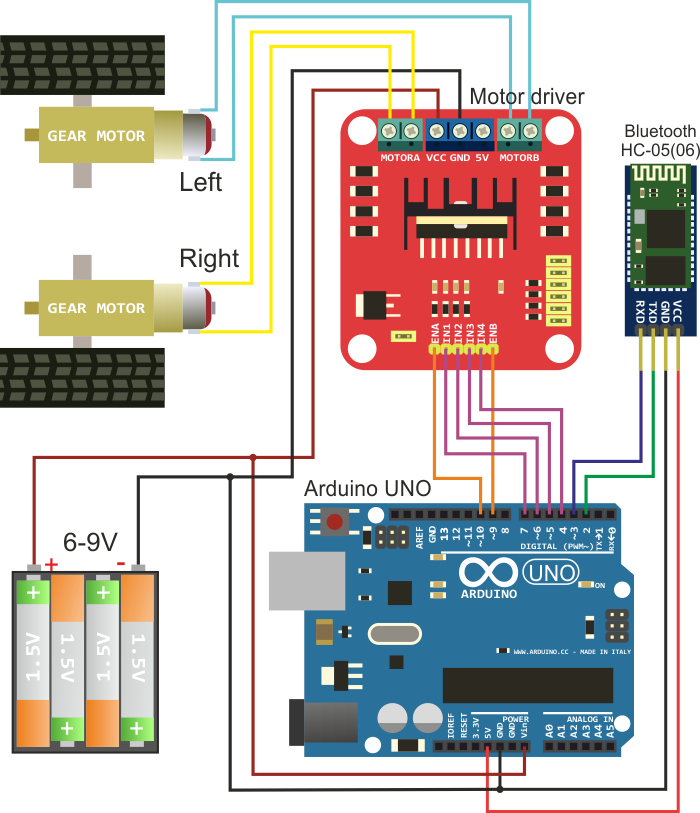
Construye el coche robot usando cualquier plataforma disponible basada en circuito de dos ruedas. El diagrama de conexión de los componentes electrónicos se muestra en la figura de abajo. Necesitarás Arduino UNO o placa compatible, módulo Bluetooth HC-05 (06), driver de motor y batería de alimentación. Los motores con engranajes se colocan en la plataforma y fuerzan el movimiento de las ruedas del robot.

Paso 2: Crear Interfaz Gráfica con RemoteXY
Ve al sitio web del servicio RemoteXY en https://remotexy.com/en/editor/ y crea una interfaz gráfica de usuario para controlar el robot. Configura una función de control usando el sensor G para joystick. Un ejemplo de interfaz está en la figura de abajo. Haz clic en el botón "Get source code".

Paso 3: Descargar y Preparar el Código
Descarga el código fuente de la GUI y ábrelo en Arduino IDE. Para la compilación necesitas la librería RemoteXY.h; la librería se puede descargar del enlace https://remotexy.com/en/library/. Ya puedes intentar cargar el código en Arduino y conectar con la aplicación móvil. Pero mientras esto es solo el código base, necesitarás añadir la funcionalidad requerida vinculando la interfaz gráfica y el driver de motor.
Paso 4: Añadir Funcionalidad de Control del Robot
Luego necesitas añadir la funcionalidad de control del robot al código fuente usando la interfaz gráfica. Para este propósito, la estructura RemoteXY. La estructura RemoteXY muestra todos los controles de tu GUI.
El código fuente resultante se muestra abajo. Puedes compilarlo y subirlo a Arduino.
Paso 5: Instalar App Móvil y Conectar
Instala la aplicación móvil RemoteXY en https://remotexy.com/en/download/. Cuando la aplicación se esté ejecutando en el dispositivo móvil, presiona el botón de conexión Bluetooth en la lista, selecciona el nombre de tu módulo Bluetooth; para módulos HC-05 (06) el nombre típicamente será INVOR o HC-06.
¡Funciona!
Código
/////////////////////////////////////////////
// RemoteXY include library
/////////////////////////////////////////////
/* RemoteXY select connection mode and include library */
#define REMOTEXY_MODE__SOFTWARESERIAL
#include <SoftwareSerial.h>
#include <RemoteXY.h>

/* RemoteXY connection settings */
#define REMOTEXY_SERIAL_RX 2
#define REMOTEXY_SERIAL_TX 3
#define REMOTEXY_SERIAL_SPEED 9600

/* RemoteXY configurate */
unsigned char RemoteXY_CONF[] = {
  3,0,23,0,1,5,5,15,41,11,
  43,43,1,2,0,6,5,27,11,5,
  79,78,0,79,70,70,0
};

/* this structure defines all the variables of your control interface */
struct {
  /* input variable */
  signed char joystick_1_x; /* =-100..100 x-coordinate joystick position */
  signed char joystick_1_y; /* =-100..100 y-coordinate joystick position */
  unsigned char switch_1; /* =1 if switch ON and =0 if OFF */
  /* other variable */
  unsigned char connect_flag; /* =1 if wire connected, else =0 */
} RemoteXY;

/////////////////////////////////////////////
// END RemoteXY include
/////////////////////////////////////////////

/* defined the right motor control pins */
#define PIN_MOTOR_RIGHT_UP 7
#define PIN_MOTOR_RIGHT_DN 6
#define PIN_MOTOR_RIGHT_SPEED 10

/* defined the left motor control pins */
#define PIN_MOTOR_LEFT_UP 5
#define PIN_MOTOR_LEFT_DN 4
#define PIN_MOTOR_LEFT_SPEED 9

/* defined the LED pin */
#define PIN_LED 13

/* defined two arrays with a list of pins for each motor */
unsigned char RightMotor[3] = {PIN_MOTOR_RIGHT_UP, PIN_MOTOR_RIGHT_DN, PIN_MOTOR_RIGHT_SPEED};
unsigned char LeftMotor[3] = {PIN_MOTOR_LEFT_UP, PIN_MOTOR_LEFT_DN, PIN_MOTOR_LEFT_SPEED};

/* speed control of the motor
   motor - pointer to an array of pins
   v - motor speed can be set from -100 to 100 */
void Wheel (unsigned char * motor, int v) {
  if (v > 100) v = 100;
  if (v < -100) v = -100;
  if (v > 0) {
    digitalWrite(motor[0], HIGH);
    digitalWrite(motor[1], LOW);
    analogWrite(motor[2], v * 2.55);
  } else if (v < 0) {
    digitalWrite(motor[0], LOW);
    digitalWrite(motor[1], HIGH);
    analogWrite(motor[2], (-v) * 2.55);
  } else {
    digitalWrite(motor[0], LOW);
    digitalWrite(motor[1], LOW);
    analogWrite(motor[2], 0);
  }
}

void setup() {
  /* initialization pins */
  pinMode (PIN_MOTOR_RIGHT_UP, OUTPUT);
  pinMode (PIN_MOTOR_RIGHT_DN, OUTPUT);
  pinMode (PIN_MOTOR_LEFT_UP, OUTPUT);
  pinMode (PIN_MOTOR_LEFT_DN, OUTPUT);
  pinMode (PIN_LED, OUTPUT);
  /* initialization module RemoteXY */
  RemoteXY_Init ();
}

void loop() {
  /* event handler module RemoteXY */
  RemoteXY_Handler ();
  /* manage LED pin */
  digitalWrite (PIN_LED, (RemoteXY.switch_1 == 0) ? LOW : HIGH);
  /* manage the right motor */
  Wheel (RightMotor, RemoteXY.joystick_1_y - RemoteXY.joystick_1_x);
  /* manage the left motor */
  Wheel (LeftMotor, RemoteXY.joystick_1_y + RemoteXY.joystick_1_x);
}
Esquemático
Proceso de manufactura
- Construya un robot Raspberry Pi controlado por Bluetooth con retroalimentación de audio
- Construye un Robot Raspberry Pi Controlado por Wi‑Fi con Python – Guía Paso a Paso
- Construye un Decodificador DTMF Solo con Arduino – Sin CI Externos
- Crea un Impresionante Sistema Ambilight para Monitor con Arduino
- SERENA: Sistema de Alarma Personalizado Arduino Mega 2560 con Pantalla TFT LCD Táctil
- Construye un Voltímetro Inteligente con Arduino y Smartphone – Proyecto DIY Fácil
- Vehículo Controlado por Android con Raspberry Pi, Arduino y Motor Shield: Guía Completa
- Transforma un viejo coche RC en un vehículo controlado por joystick con Arduino
- Construye un robot controlado por voz con Arduino Nano
- MobBob: Robot Arduino Impreso en 3D, Controlado por Smartphone Android
- Control Arduino UNO desde Python 3 – Envío de Comandos y Demo LED