



Construye un Mini Osciloscopio DIY con Arduino Nano – Tutorial Paso a Paso
Componentes y suministros
| Componente | Cantidad |
|---|---|
| Arduino Nano R3 | 1 |
| Pantalla OLED 0.96" SSD1306 128x64 (I2C) | 1 |
| Interruptores táctiles (microswitch) | 9 |
| Diodos 1N4148 | 4 |
| Condensador 104 (0.1 µF) | 1 |
| Resistencias: 100Ω, 12kΩ, 120kΩ, 510kΩ | 1 c/u |
Aplicaciones y servicios en línea
- Arduino IDE
Sobre este proyecto
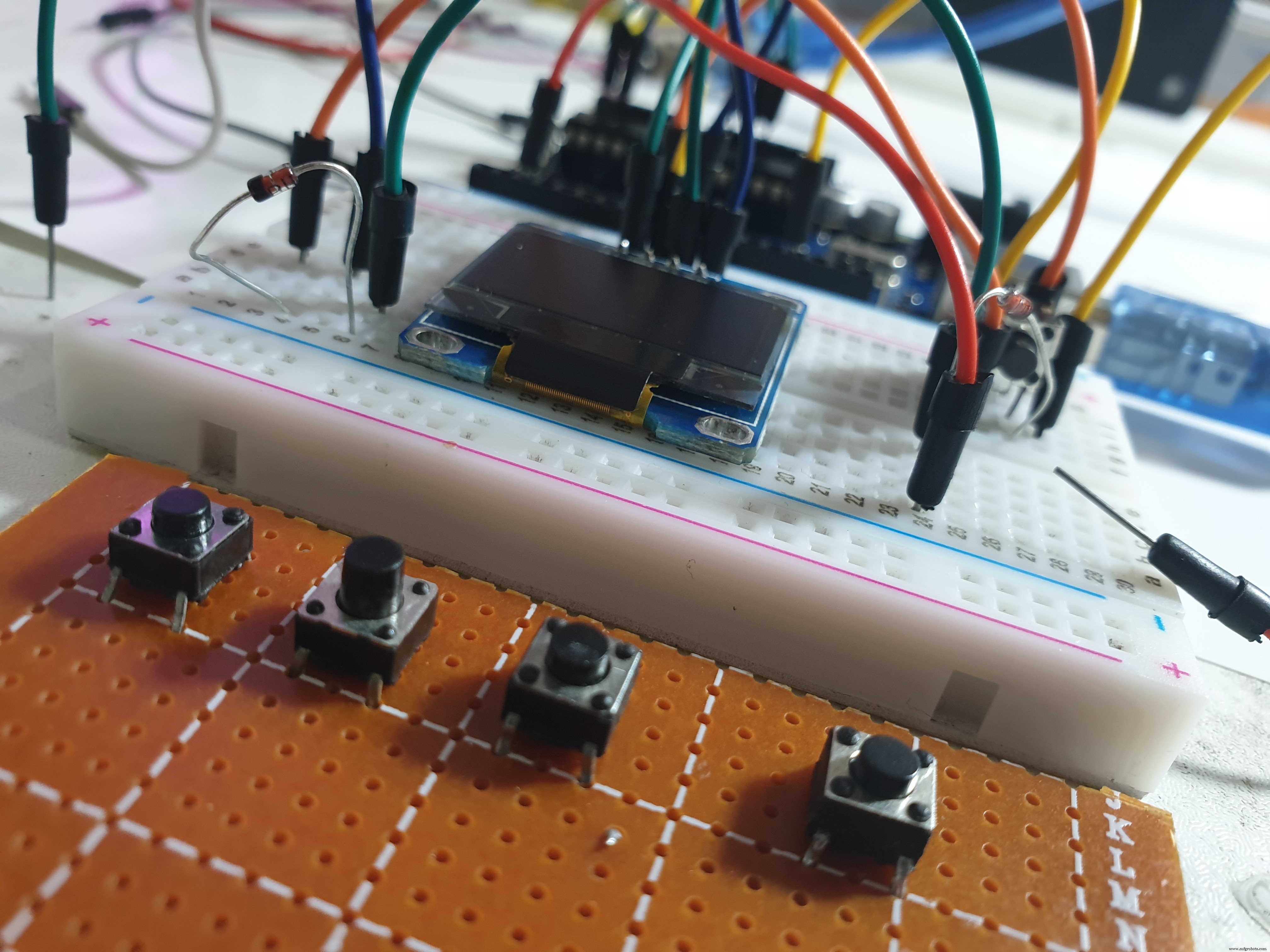
En este tutorial te muestro cómo construir tu propio mini osciloscopio casero. Es simple y fácil de hacer. El código no es mío; me basé en código de terceros (enlace al final). Si tienes dudas o sugerencias, comenta en mi video de YouTube y no olvides suscribirte al canal.
Enlace al tutorial completo y código fuente: [Insertar enlace]
Mi Instagram: @pm.goharian
Componentes necesarios
- Arduino Nano
- Pantalla OLED SSD1306
- Diodos 1N4148
- Microswitches (9 uds.)
- Condensador 104 (0.1 µF)
- Resistencias: 100Ω, 12kΩ, 120kΩ, 510kΩ
¿Qué es un osciloscopio?
Un osciloscopio (antes llamado oscilógrafo, y conocido informalmente como scope, o-scope, CRO —osciloscopio de rayos catódicos— o DSO —osciloscopio digital de almacenamiento—) es un instrumento de prueba electrónico que muestra gráficamente señales variables (voltajes), generalmente como un gráfico bidimensional de una o más señales en función del tiempo. Otras señales (sonido, vibración) pueden convertirse a voltajes y visualizarse.
Los osciloscopios muestran la variación de una señal eléctrica en el tiempo, con voltaje en el eje Y y tiempo en el eje X, en una escala calibrada. La forma de onda puede analizarse para obtener amplitud, frecuencia, tiempo de subida, intervalos, distorsión, etc. Los instrumentos digitales modernos calculan y muestran estos parámetros directamente. Originalmente, estos valores se obtenían midiendo manualmente la forma de onda contra las escalas de la pantalla.
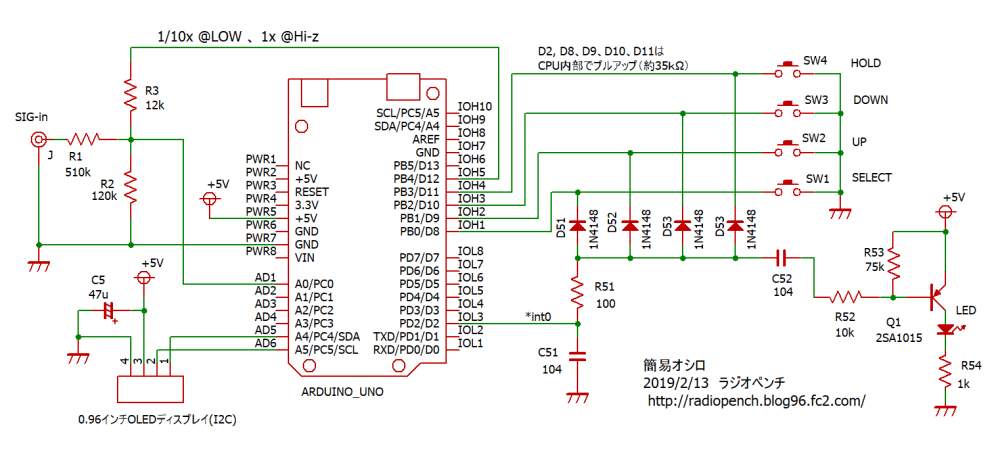
Esquemáticos del proyecto
Nota: Asegúrate de que todas las conexiones de tu circuito coincidan exactamente con los esquemáticos.


Referencias:
Código
El código completo está optimizado para Arduino Nano con pantalla OLED SSD1306 I2C. Incluye gestión de rangos de voltaje y tiempo, disparo (trigger), retención (hold), guardado en EEPROM y visualización de forma de onda en tiempo real.
/* (_20190212_OLEDoscilloscope.ino) 1285 byte RAM libre 2019/02/12 */
#include <Wire.h>
#include <Adafruit_GFX.h>
#include <Adafruit_SSD1306.h>
#include <avr/pgmspace.h>
#include <EEPROM.h>

#define SCREEN_WIDTH 128
#define SCREEN_HEIGHT 64
#define REC_LENGTH 200
#define OLED_RESET -1

Adafruit_SSD1306 display(SCREEN_WIDTH, SCREEN_HEIGHT, &Wire, OLED_RESET);

// Tablas de rangos en PROGMEM
const char vRangeName[10][5] PROGMEM = {"A50V", "A 5V", " 50V", " 20V", " 10V", " 5V", " 2V", " 1V", "0.5V", "0.2V"};
const char * const vstring_table[] PROGMEM = {vRangeName[0], vRangeName[1], vRangeName[2], vRangeName[3], vRangeName[4], vRangeName[5], vRangeName[6], vRangeName[7], vRangeName[8], vRangeName[9]};

const char hRangeName[8][6] PROGMEM = {" 50ms", " 20ms", " 10ms", " 5ms", " 2ms", " 1ms", "500us", "200us"};
const char * const hstring_table[] PROGMEM = {hRangeName[0], hRangeName[1], hRangeName[2], hRangeName[3], hRangeName[4], hRangeName[5], hRangeName[6], hRangeName[7]};

int waveBuff[REC_LENGTH];
char chrBuff[10];
String hScale = "xxxAs";
String vScale = "xxxx";
float lsb5V = 0.0055549;
float lsb50V = 0.051513;

volatile int vRange; // 0:A50V, 1:A5V, 2:50V, 3:20V, 4:10V, 5:5V, 6:2V, 7:1V, 8:0.5V, 9:0.2V
volatile int hRange; // 0:50ms, 1:20ms, 2:10ms, 3:5ms, 4:2ms, 5:1ms, 6:500us, 7:200us
volatile int trigD;  // 0: flanco subida, 1: flanco bajada
volatile int scopeP; // 0:V/div, 1:t/div, 2:trigger
volatile boolean hold = false;
volatile boolean paraChanged = false;
volatile int saveTimer;

int timeExec;
int dataMin, dataMax, dataAve;
int rangeMax, rangeMin, rangeMaxDisp, rangeMinDisp;
int trigP;
boolean trigSync;
int att10x;

void setup() {
  pinMode(2, INPUT_PULLUP);  // INT0
  pinMode(8, INPUT_PULLUP);  // Select
  pinMode(9, INPUT_PULLUP);  // Up
  pinMode(10, INPUT_PULLUP); // Down
  pinMode(11, INPUT_PULLUP); // Hold
  pinMode(12, INPUT);        // 1/10x atenuador
  pinMode(13, OUTPUT);       // LED indicador

  if (!display.begin(SSD1306_SWITCHCAPVCC, 0x3C)) {
    for (;;); // Bucle infinito si falla
  }
  loadEEPROM();
  analogReference(INTERNAL); // ADC 1.1V referencia interna
  attachInterrupt(0, pin2IRQ, FALLING);
}

void loop() {
  digitalWrite(13, HIGH);
  setConditions();
  readWave();
  digitalWrite(13, LOW);
  // dataAnalize(); // Comentado en original
  writeCommonImage();
  plotData();
  dispInf();
  display.display();
  saveEEPROM();

  while (hold) {
    dispHold();
    delay(10);
  }
}

void setConditions() {
  strcpy_P(chrBuff, (char*)pgm_read_word(&(hstring_table[hRange])));
  hScale = chrBuff;
  strcpy_P(chrBuff, (char*)pgm_read_word(&(vstring_table[vRange])));
  vScale = chrBuff;

  switch (vRange) {
    case 0: // Auto 50V
    case 1: // Auto 5V
      rangeMax = 1023; rangeMin = 0;
      att10x = (vRange == 0) ? 1 : 0;
      break;
    case 2: rangeMax = 50 / lsb50V; rangeMaxDisp = 5000; rangeMin = 0; rangeMinDisp = 0; att10x = 1; break; // 50V
    case 3: rangeMax = 20 / lsb50V; rangeMaxDisp = 2000; rangeMin = 0; rangeMinDisp = 0; att10x = 1; break; // 20V
    case 4: rangeMax = 10 / lsb50V; rangeMaxDisp = 1000; rangeMin = 0; rangeMinDisp = 0; att10x = 1; break; // 10V
    case 5: rangeMax = 5 / lsb5V;   rangeMaxDisp = 500;  rangeMin = 0; rangeMinDisp = 0; att10x = 0; break; // 5V
    case 6: rangeMax = 2 / lsb5V;   rangeMaxDisp = 200;  rangeMin = 0; rangeMinDisp = 0; att10x = 0; break; // 2V
    case 7: rangeMax = 1 / lsb5V;   rangeMaxDisp = 100;  rangeMin = 0; rangeMinDisp = 0; att10x = 0; break; // 1V
    case 8: rangeMax = 0.5 / lsb5V; rangeMaxDisp = 50;   rangeMin = 0; rangeMinDisp = 0; att10x = 0; break; // 0.5V
    case 9: rangeMax = 0.2 / lsb5V; rangeMaxDisp = 20;   rangeMin = 0; rangeMinDisp = 0; att10x = 0; break; // 0.2V
  }
}

void writeCommonImage() {
  display.clearDisplay();
  display.setTextColor(WHITE);
  display.setCursor(86, 0);
  display.println(F("av V"));
  display.drawFastVLine(26, 9, 55, WHITE);
  display.drawFastVLine(127, 9, 55, WHITE);
  display.drawFastHLine(24, 9, 7, WHITE);
  display.drawFastHLine(24, 36, 2, WHITE);
  display.drawFastHLine(24, 63, 7, WHITE);
  for (int x = 51; x <= 123; x += 25) {
    display.drawFastHLine(x, 9, 3, WHITE);
    display.drawFastHLine(x, 63, 3, WHITE);
  }
  for (int x = 26; x <= 128; x += 5) display.drawFastHLine(x, 36, 2, WHITE);
  for (int x = 102; x > 30; x -= 25)
    for (int y = 10; y < 63; y += 5) display.drawFastVLine(x, y, 2, WHITE);
}

void readWave() {
  if (att10x == 1) { pinMode(12, OUTPUT); digitalWrite(12, LOW); }
  else { pinMode(12, INPUT); }

  switch (hRange) {
    case 0: timeExec = 450; ADCSRA = (ADCSRA & 0xf8) | 0x07; // 128 prescaler
      for (int i=0; i 9) x = 3; vRange = x;
  x = EEPROM.read(1); if (x < 0 || x > 7) x = 3; hRange = x;
  x = EEPROM.read(2); if (x < 0 || x > 1) x = 1; trigD = x;
  x = EEPROM.read(3); if (x < 0 || x > 2) x = 1; scopeP = x;
}

void pin2IRQ() {
  int x = PINB & 0x0F; // Pines 8-11 (PB0-PB3) + INT0 (PD2)
  if ((x & 0x07) != 0x07) { saveTimer = 5000; paraChanged = true; }
  if ((x & 0x01) == 0) { scopeP++; if (scopeP > 2) scopeP = 0; }
  if ((x & 0x02) == 0) {
    if (scopeP == 0) { vRange++; if (vRange > 9) vRange = 9; }
    if (scopeP == 1) { hRange++; if (hRange > 7) hRange = 7; }
    if (scopeP == 2) trigD = 0;
  }
  if ((x & 0x04) == 0) {
    if (scopeP == 0) { vRange--; if (vRange < 0) vRange = 0; }
    if (scopeP == 1) { hRange--; if (hRange < 0) hRange = 0; }
    if (scopeP == 2) trigD = 1;
  }
  if ((x & 0x08) == 0) hold = !hold;
}
Esquemáticos
Proceso de manufactura
- Construye tu propia máquina de escribir deberes casera (DIY Homework Writing Machine)
- Construye una consola de control DIY para Photoshop con Arduino Nano RP2040
- Crea un Impresionante Sistema Ambilight para Monitor con Arduino
- Crea un Botón de Teclado Personalizado y "Apuñalable" con Arduino: Guía Paso a Paso
- Mide la masa de la Tierra con Arduino: Guía paso a paso DIY
- Crea una Interfaz Web en PHP para Controlar tu Arduino Uno
- Genera Tonos Musicales con Arduino: Guía Paso a Paso
- Puerta automática con Arduino y sensor ultrasónico HC-SR04
- Robot comedero con Arduino Nano: Guía paso a paso
- Construye una Brújula Digital en Tiempo Real con Arduino y Processing
- Fabricación casera de fibra de carbono: Guía paso a paso para crear tus propias piezas