



Construye un Altavoz Inteligente Estilo Amazon Echo con Arduino y 1Sheeld
Componentes y materiales
| Componente | Cantidad |
|---|---|
| Arduino 101 | 1 |
| 1Sheeld | 1 |
| Lámpara de varilla (stick lamp) | 1 |
| Tira LED RGB | 1 |
| Placa de relés | 1 |
| iPhone de Apple | 1 |
| Protoboard (genérica) | 1 |
| Cable USB-A a B | 1 |
| Cables de puente (jumper wires) | 30 |
| Transistor NPN de propósito general | 3 |
Herramientas y máquinas necesarias
- Taladro
- Tubo PVC
Aplicaciones y servicios en línea
- Arduino IDE
Sobre el proyecto
Hace unos meses visité a un amigo y me sorprendió el Amazon Echo que tenía. Puede reproducir música, controlar las luces de la casa, darme noticias y estado del tiempo, e incluso la fecha y hora, todo con solo comandos de voz. En ese momento, el "maker" que llevo dentro gritó "¡¿por qué no lo hago yo mismo?!".
Desde ese día empecé a buscar componentes que me ayudaran a hacer un Amazon Echo basado en Arduino, hasta que encontré el asombroso 1Sheeld.
1Sheeld es una plataforma para Arduino que te permite aprovechar los sensores y capacidades de tu smartphone y usarlos en tus proyectos de Arduino. Básicamente, es un shield de hardware que se coloca sobre tu placa Arduino y se comunica por Bluetooth con esta app de Android, para transferir datos entre ella y tu smartphone.
Puedes consultar el tutorial de inicio en la web de 1Sheeld que te guiará paso a paso hasta que puedas operar el 1Sheeld muy fluidamente y es una referencia impresionante para grandes proyectos de Arduino.
He usado en este proyecto cinco shields de los 40+ shields disponibles en 1Sheeld.

Shields utilizados:
- Voice Recognition Shield (Reconocimiento de voz) - Para controlar todo el sistema con comandos de voz. Muy simple, se activa con una línea:
VoiceRecognition.start(); - Music Player Shield (Reproductor de música) - Permite acceder al reproductor de música del smartphone y elegir pistas. Una línea:
MusicPlayer.play(); - Text to Speech Shield (Texto a voz) - Añade interacción humanoide, alguien responde a lo que dices. Muy fácil:
TextToSpeech.say("time in cairo is"); - Clock Shield (Reloj) - Devuelve la hora en tiempo real. Función:
Clock.queryDateAndTime(); - Internet Shield (Internet) - El más potente en mi opinión. Lo usé para obtener el estado del tiempo actual en mi ciudad usando una API de "openweathermap". Llamada:
HttpRequest request1("/*dirección API */");
Paso 1: Reunir los componentes
- Arduino 101 - $30.99
- Placa 1Sheeld+ - $54.94
- iPhone - $155.5
- Tubo PVC - $2
- Tira LED - $5
- Fuente de alimentación 12V - $7
- Placa de relés - $3
- Jumpers y cables - $3
- 3 transistores NPN - $1
Paso 2: Hacer agujeros en el tubo
Para permitir que el sonido salga.
Paso 3: Pintar el tubo PVC
Con spray negro.
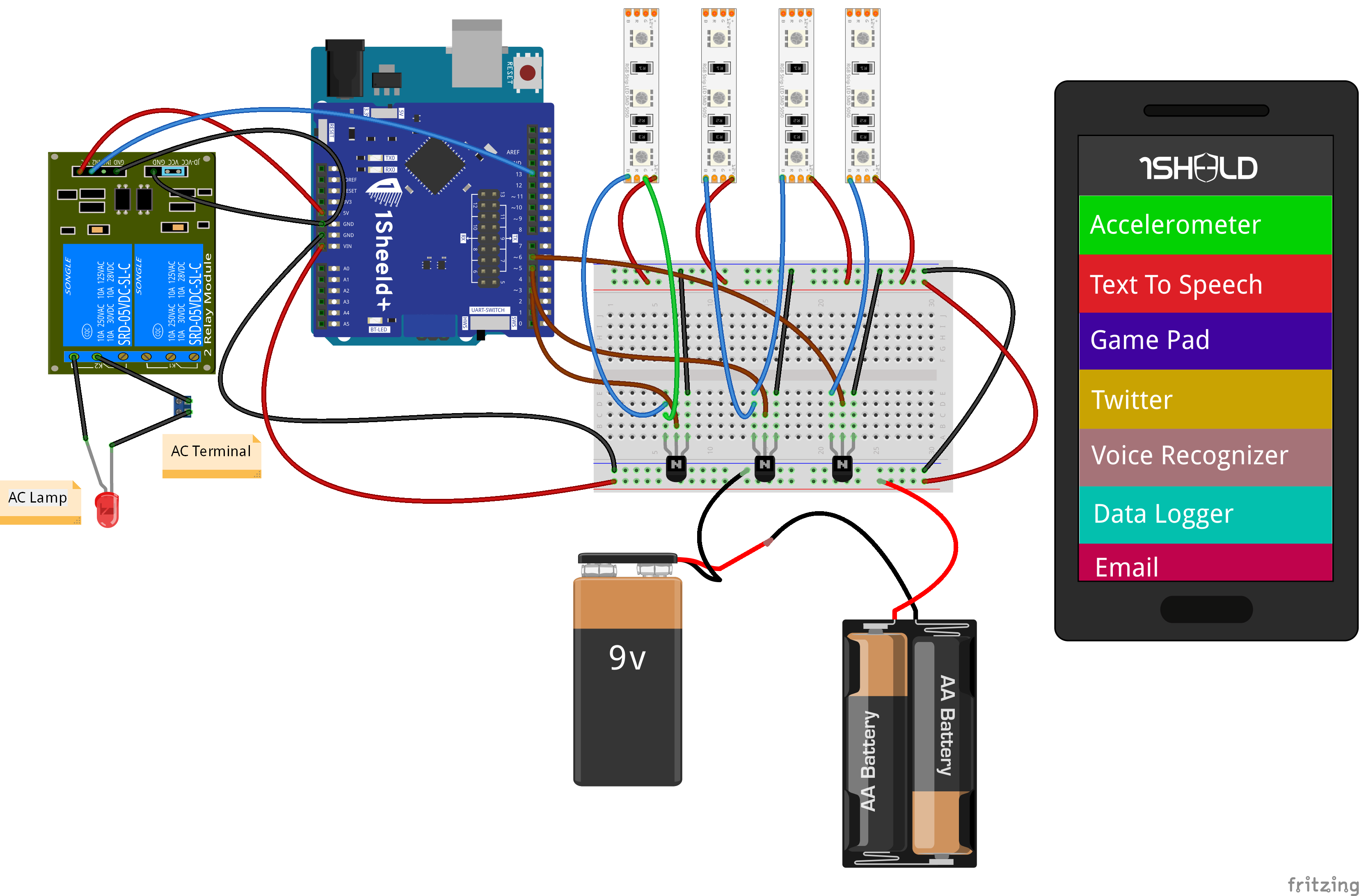
Paso 4: Hacer el cableado
- Conectar las tiras LED a los transistores y la fuente de alimentación
- Conectar la lámpara a la placa de relés y terminales AC
- Conectar la placa de relés y tiras LED al Arduino 101 según el código
- Montar todo con el iPhone dentro del tubo PVC
Paso 5: Configurar librería 1Sheeld
Puedes gestionar librerías desde el IDE de Arduino: Sketch > Include library > Manage libraries > escribe OneSheeld > clic en instalar. O descarga la librería desde 1sheeld.com/downloads y añade el .zip en el IDE.
Paso 6: Instalar app 1Sheeld
Descarga la app móvil 1Sheeld desde la web o desde Apple App Store / Google Play Store.
Paso 7: Acceder a los shields
Sigue el tutorial de inicio de 1Sheeld y al final elige los siguientes shields:
- Voice Recognition
- Text to Speech
- Clock
- Internet
- Music Player
Luego presiona el botón de multiple shield.
Código
Código Amazon EchoArduino
/* OPTIONAL: To reduce the library compiled size and limit its memory usage,
   you can specify which shields you want to include in your sketch by defining
   CUSTOM_SETTINGS and the shields respective INCLUDE_ define. */
#define CUSTOM_SETTINGS
#define INCLUDE_INTERNET_SHIELD
#define INCLUDE_VOICE_RECOGNIZER_SHIELD
#define INCLUDE_TEXT_TO_SPEECH_SHIELD
#define INCLUDE_MUSIC_PLAYER_SHIELD
#define INCLUDE_CLOCK_SHIELD

/* Include 1Sheeld library. */
#include <OneSheeld.h>

unsigned long previousMillis = 0;
bool state = 0;

/* Call an api that will return the weather status in cairo,egypt. */
HttpRequest request1("https://api.openweathermap.org/data/2.5/weather?q=Cairo,EG&appid=43d95b4cf5d0573e2dfe5186c160017a");

#define strip1 3
#define strip2 6
#define strip3 5
int lamp = 13;
int hour, minute;
char b[4];
char c[4];
String strh, strm;
String noon;

const char mainCommand[] = "alexa";
const char weatherCommand[] = "how is the weather today";
const char playCommand[] = "play music";
const char clockCommand[] = "what time is it";
const char stopCommand[] = "stop";
const char lightonCommand[] = "turn on the lights";
const char lightoffCommand[] = "turn off the lights";

void setup() {
  OneSheeld.begin();
  pinMode(strip1,OUTPUT);
  pinMode(strip2,OUTPUT);
  pinMode(strip3,OUTPUT);
  pinMode(lamp,OUTPUT);
  request1.setOnSuccess(&onSuccess1);
  request1.getResponse().setOnJsonResponse(&onJsonReply1);
  VoiceRecognition.setOnNewCommand(&myFunction);
}

void loop() {
  unsigned long currentMillis = millis();
  if (currentMillis - previousMillis >= 5000) {
    previousMillis = currentMillis;
    Clock.queryDateAndTime();
    VoiceRecognition.start();
  }

  hour = Clock.getHours();
  minute = Clock.getMinutes();
  if (hour > 12) { hour -= 12; noon = "P M"; } else { noon = "A M"; }
  strh = String(hour);
  strm = String(minute);
  strh.toCharArray(b, 4);
  strm.toCharArray(c, 4);
}

void myFunction (char *commandSpoken) {
  if (!strcmp(mainCommand, VoiceRecognition.getLastCommand())) {
    alexon();
    MusicPlayer.setVolume(5);
    state = 1;
  }
  if (!strcmp(playCommand, VoiceRecognition.getLastCommand()) && state == 1) {
    alexoff();
    MusicPlayer.play();
    delay(10000);
    MusicPlayer.stop();
    state = 0;
  }
  else if(!strcmp(weatherCommand,VoiceRecognition.getLastCommand()) && state == 1) {
    alexoff();
    Internet.performGet(request1);
    OneSheeld.delay(5000);
    state = 0;
  }
  if(!strcmp(clockCommand,VoiceRecognition.getLastCommand()) && state == 1) {
    alexoff();
    TextToSpeech.say("time in cairo is");
    delay(1300);
    TextToSpeech.say(b);
    delay(600);
    TextToSpeech.say(c);
    delay(800);
    TextToSpeech.say(noon);
    delay(500);
    state = 0;
  }
  if (!strcmp(lightonCommand, VoiceRecognition.getLastCommand()) && state == 1) {
    alexoff();
    digitalWrite(lamp,HIGH);
    TextToSpeech.say("the lights turned on");
    delay(6000);
    state = 0;
  }
  else if (!strcmp(lightoffCommand, VoiceRecognition.getLastCommand()) && state == 1) {
    alexoff();
    digitalWrite(lamp,LOW);
    TextToSpeech.say("the lights turned off");
    delay(3000);
    state = 0;
  }
}

void onSuccess1(HttpResponse & response1) {
  response1["weather"][0]["main"].query();
  delay(200);
}

void onJsonReply1(JsonKeyChain & hell,char * output) {
  if(hell == request1.getResponse()["weather"][0]["main"]) {
    TextToSpeech.say("the weather today in cairo is");
    delay(2000);
    TextToSpeech.say(output);
  }
}

void alexon(){
  digitalWrite(strip1,HIGH); delay(200);
  digitalWrite(strip2,HIGH); delay(200);
  digitalWrite(strip3,HIGH);
}

void alexoff(){
  digitalWrite(strip1,LOW);
  digitalWrite(strip2,LOW);
  digitalWrite(strip3,LOW);
}
Esquemáticos
Proceso de manufactura
- Transferir datos de temperatura y humedad entre dos Arduinos usando Firebase
- Proyecto Dados Digitales Arduino: Construye tu Propio Generador de Números Aleatorios con LCD
- Mando universal Android con Arduino, 1Sheeld y control IR
- Mando USB para juegos DIY con Arduino – Construye tu propio gamepad de alto rendimiento
- Medición de Distancia en Tiempo Real con Sonar Arduino y Visualización en Processing
- Pixel Chaser: Juego LED Interactivo de Un Toque con Arduino Nano
- Control de brillo LED sin interrupciones con Bolt IoT y Arduino UNO
- Brazo Robótico Inteligente Controlado por Arduino: Tutorial DIY Fácil
- Construye tu Propio Tanque Autónomo: Walabot, Arduino, Raspberry Pi y Alexa
- Construye una Radio FM Compacta con Arduino Nano y RDA5807M
- Pong Neón en Matriz NeoPixel con Arduino Nano